Download PS1 BIOS for ARMSX1
The PS1 BIOS is an essential component of the ARMSX1 emulator. It serves as the core system for running PlayStation 1 game discs within the ARMSX1 emulator. The emulator replicates the hardware of the PlayStation 1 console and then executes the BIOS, just as it would on the original console.
You must provide the BIOS yourself by downloading it from this site if you wish to play PS1 games on an emulator such as ARMSX1. The BIOS handles various functions, including controller input, memory card management, game disc execution, and more. PS1 BIOS files are very small—approximately 512 KB each—so they will not take up much storage space, even if you download every available version.
Download All BIOS Versions
Below are all the PS1 BIOS versions that we have tested on ARMSX1, all of which work perfectly. Please ensure you select the appropriate BIOS version for the game you intend to play.
| Region | Console model | Download | Video |
|---|---|---|---|
| USA | SCPH-1001 | Download SCPH-1001 | NTSC-U |
| USA | SCPH-7003 | Download SCPH-7003 | NTSC-U |
| Europe | SCPH-7502 | Download SCPH-7502 | PAL |
| Japan | SCPH-5500 | Download SCPH-5500 | NTSC-J |
Within a given region, use the latest BIOS version (for example, SCPH-7003 rather than an older version like SCPH-1001) to ensure a better gaming experience. Selecting the appropriate BIOS version can also be important; for instance, games originating from Japan may run better when using the SCPH-5500 BIOS.
How to Add a BIOS to ARMSX1
-
Save the BIOS file in one folder
Download the BIOS from the table above, then put the BIOS file in one folder, for example Download/armsx1.
-
Open ARMSX1 initial setup
When first opened, ARMSX1 displays a three-step setup: App Data Folder, BIOS Location, and ROM Location. Tap Next, choose where to save the memory card, save state and configuration, then tap Next again.
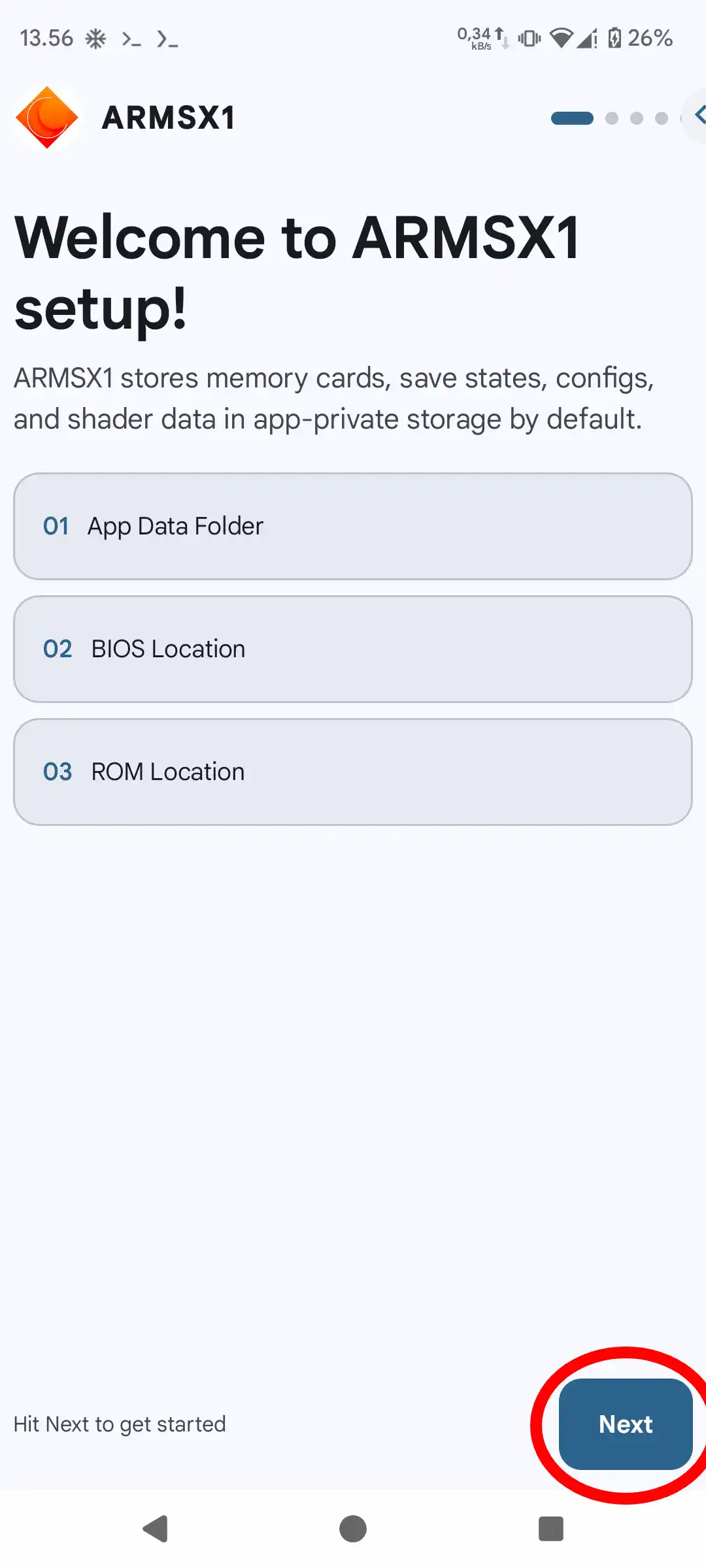
Tap Next to start setup. 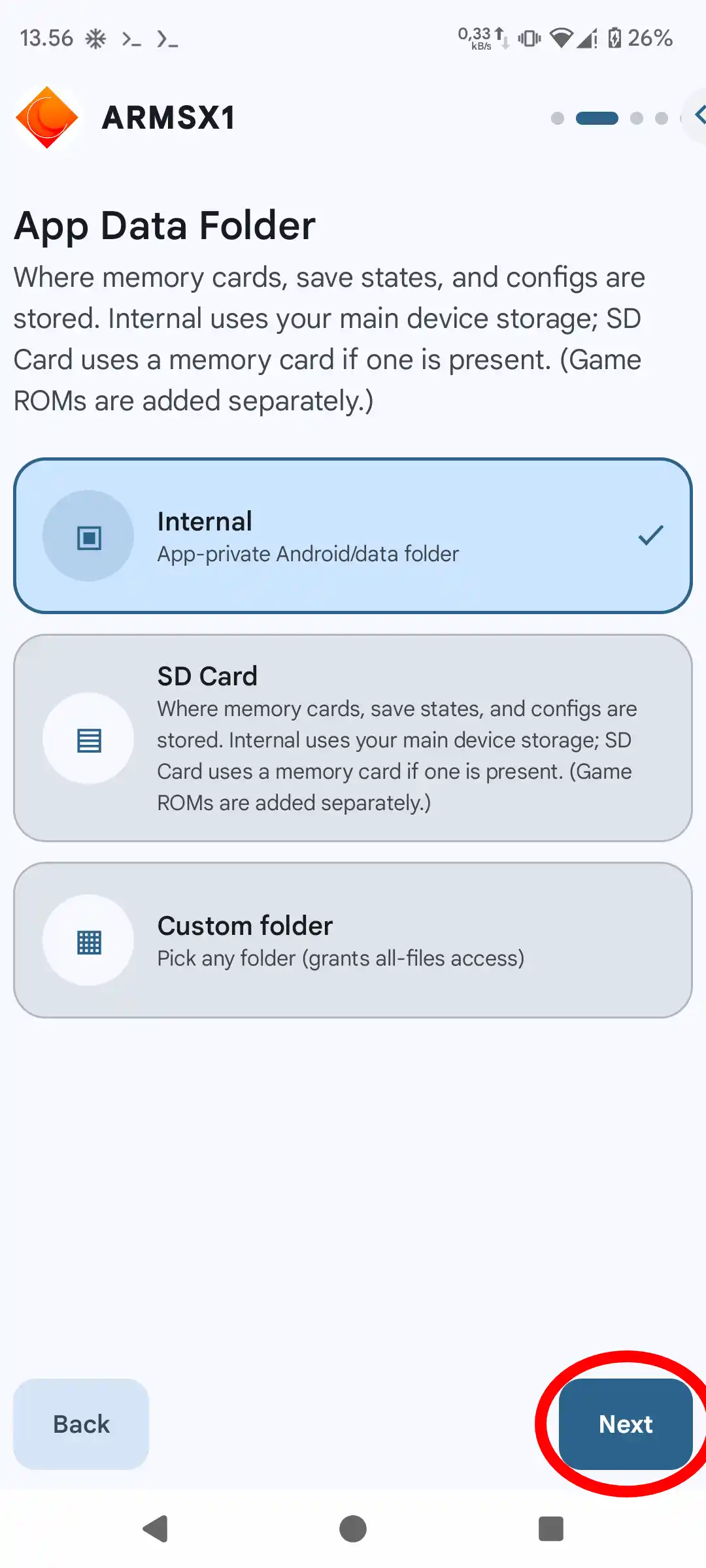
Select the location of the app data, then tap Next. -
Select BIOS folder
On the Select your BIOS screen, tap Select BIOS. Open the folder from step 1, tap Use this folder, then Allow. ARMSX1 scans that folder and displays all detected BIOSes and their region flags. Select one (marked BIOS selected), then tap Next. This selection can be changed at any time in the BIOS settings. If the list is empty, tap Pick a different folder and check that the BIOS file is already in that folder, is not in a ZIP, and is 512KB in size.
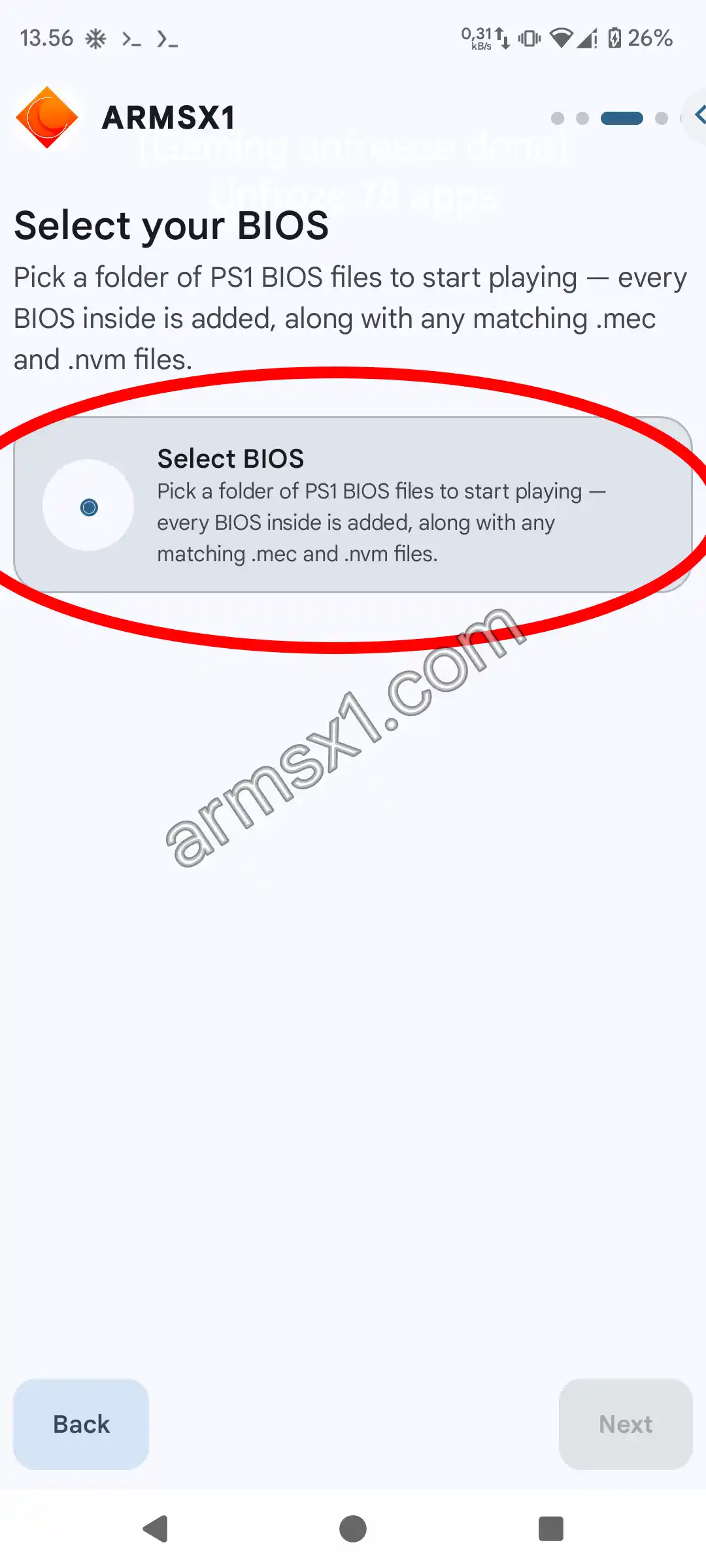
Tap Select BIOS. 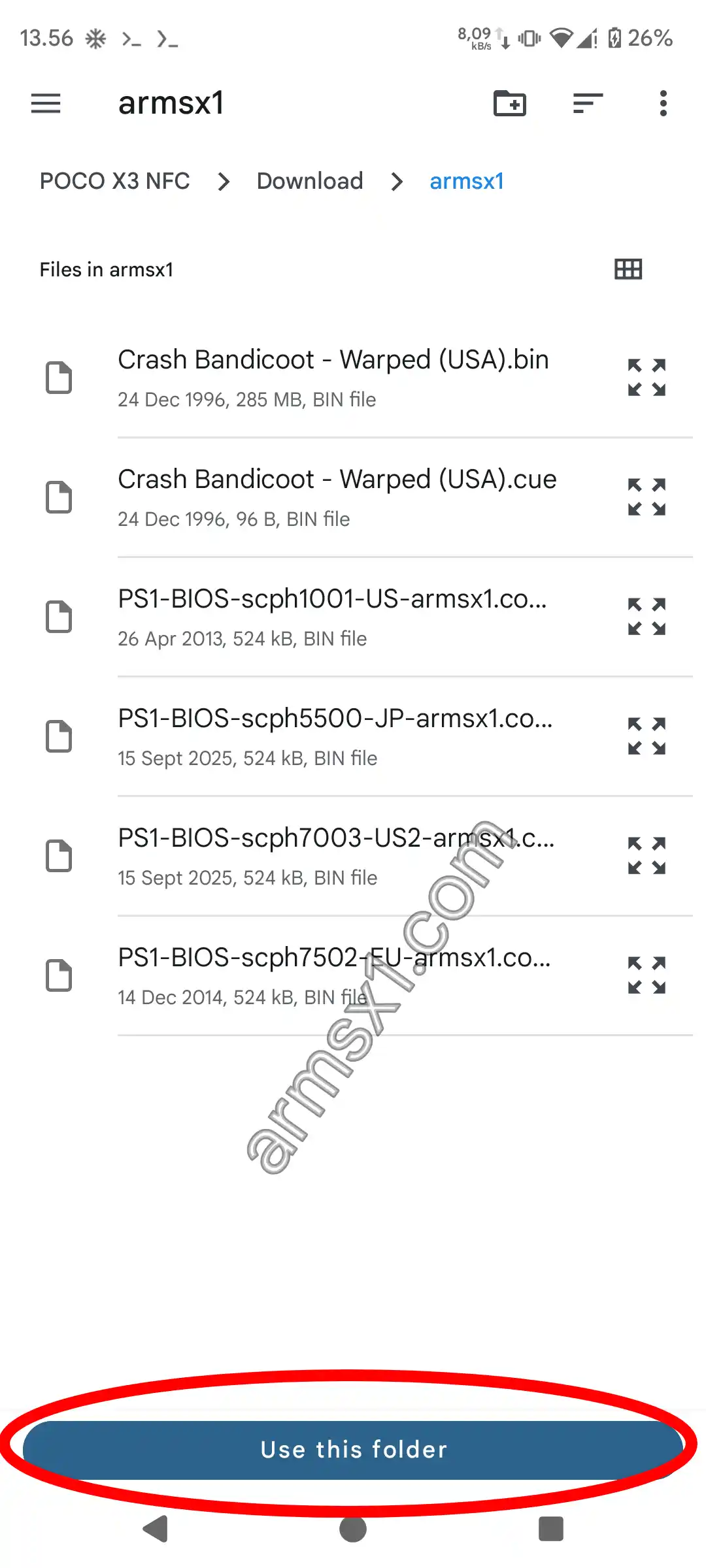
Open the BIOS folder, then tap Use this folder. 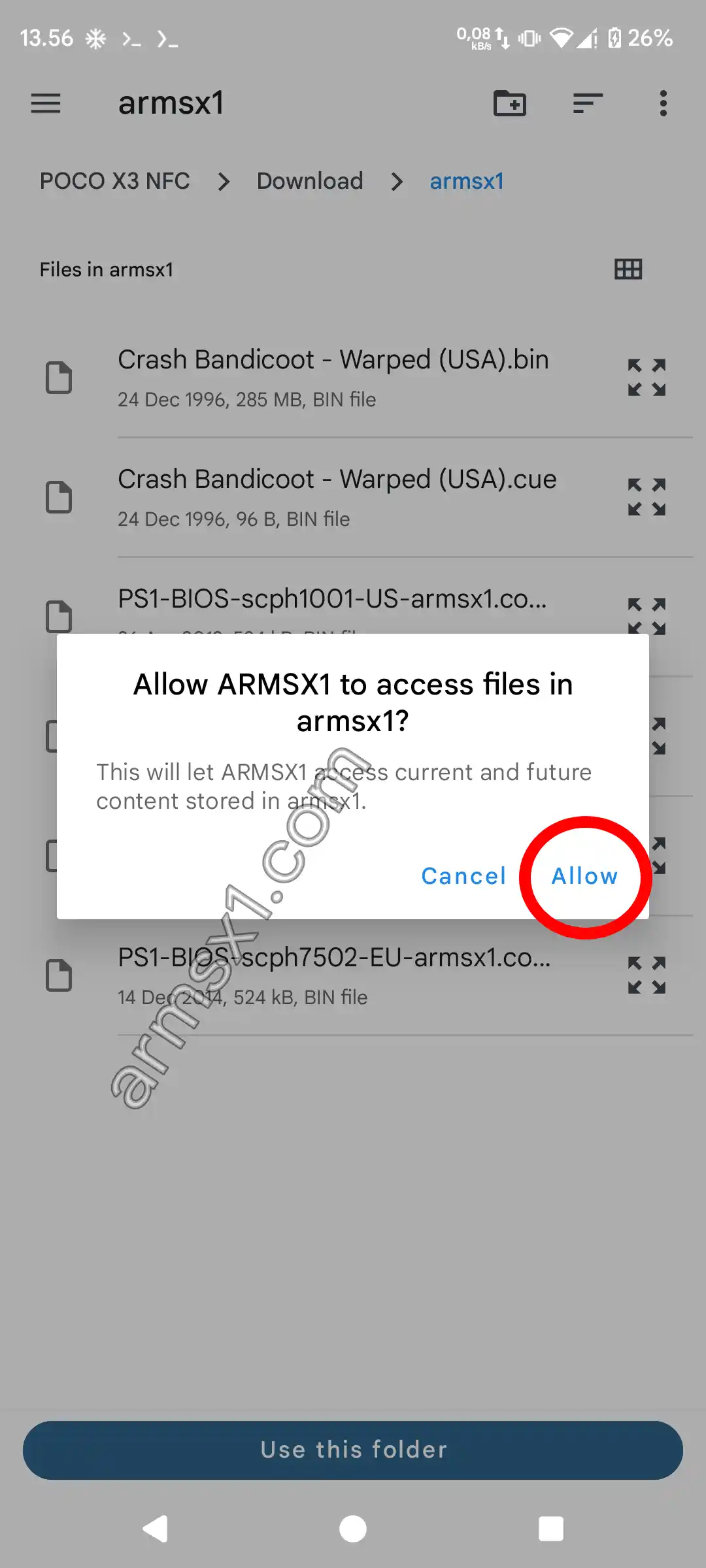
Tap Allow. 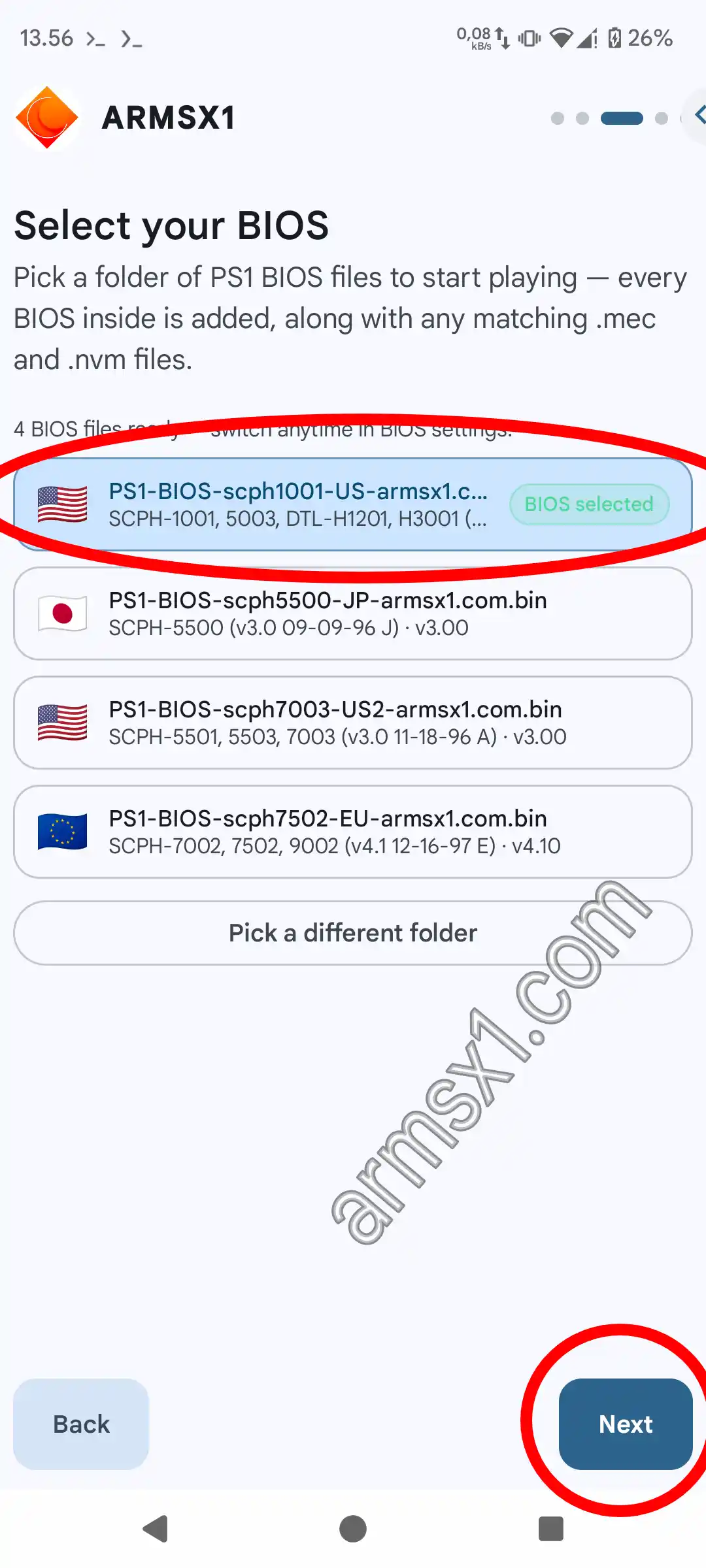
All four BIOSes are detected. Select one, then tap Next. -
Add game folder
On the Select ROMs folder screen, tap Pick ROMs Folder, navigate to the folder where you keep your PS1 games, then tap Use this folder and Allow. The folder will be added to the list. Tap Add Another Folder if your games are stored in several different folders, then tap Next.
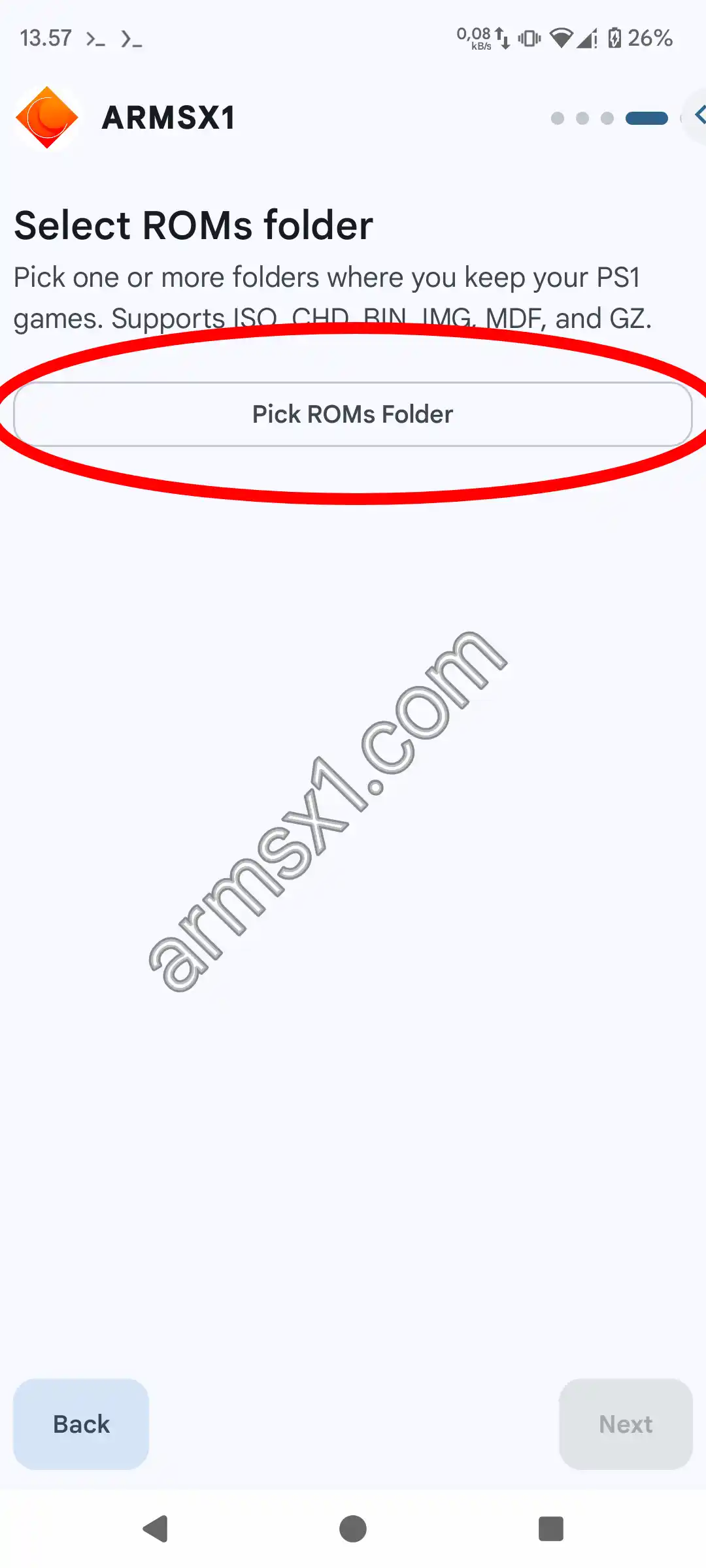
Tap Pick ROMs Folder. 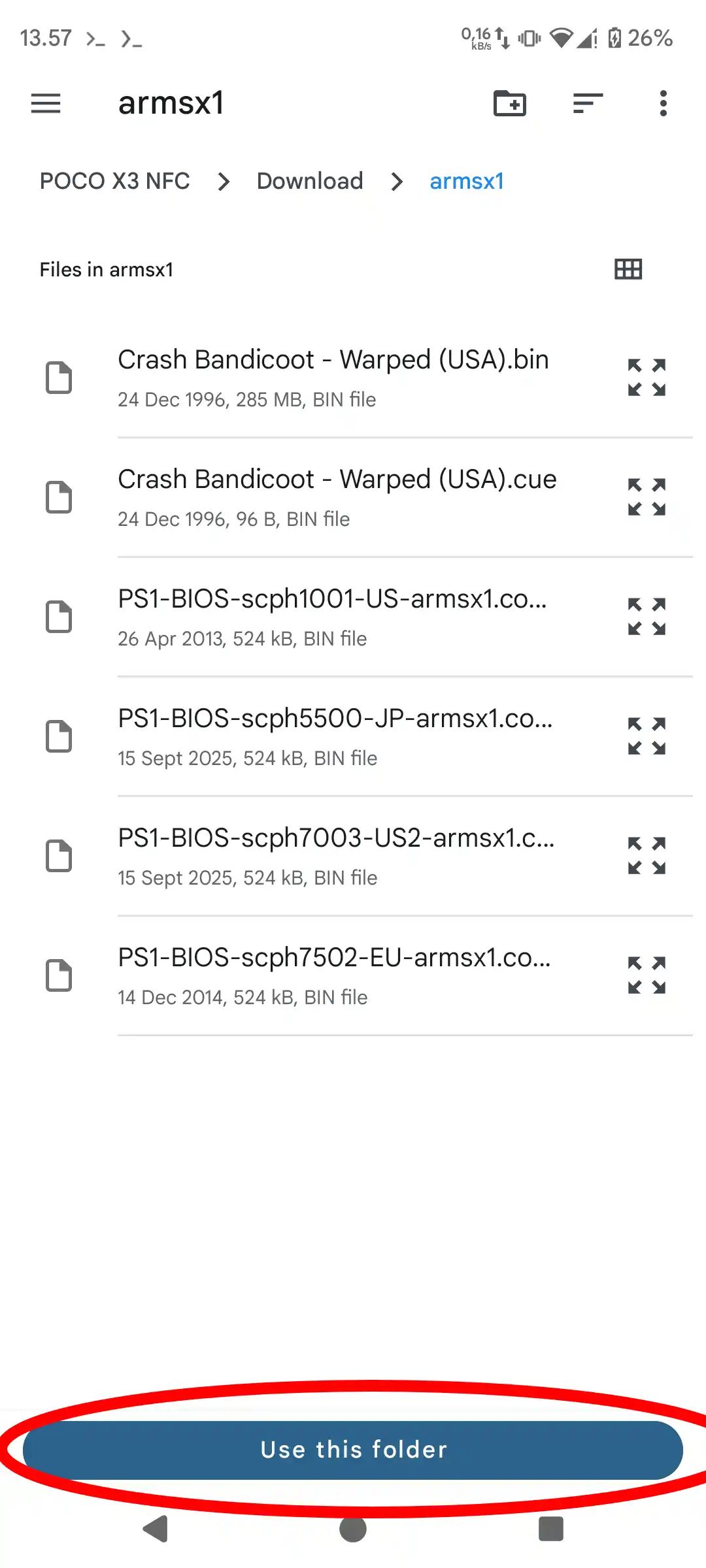
Select the game folder, then tap Use this folder. 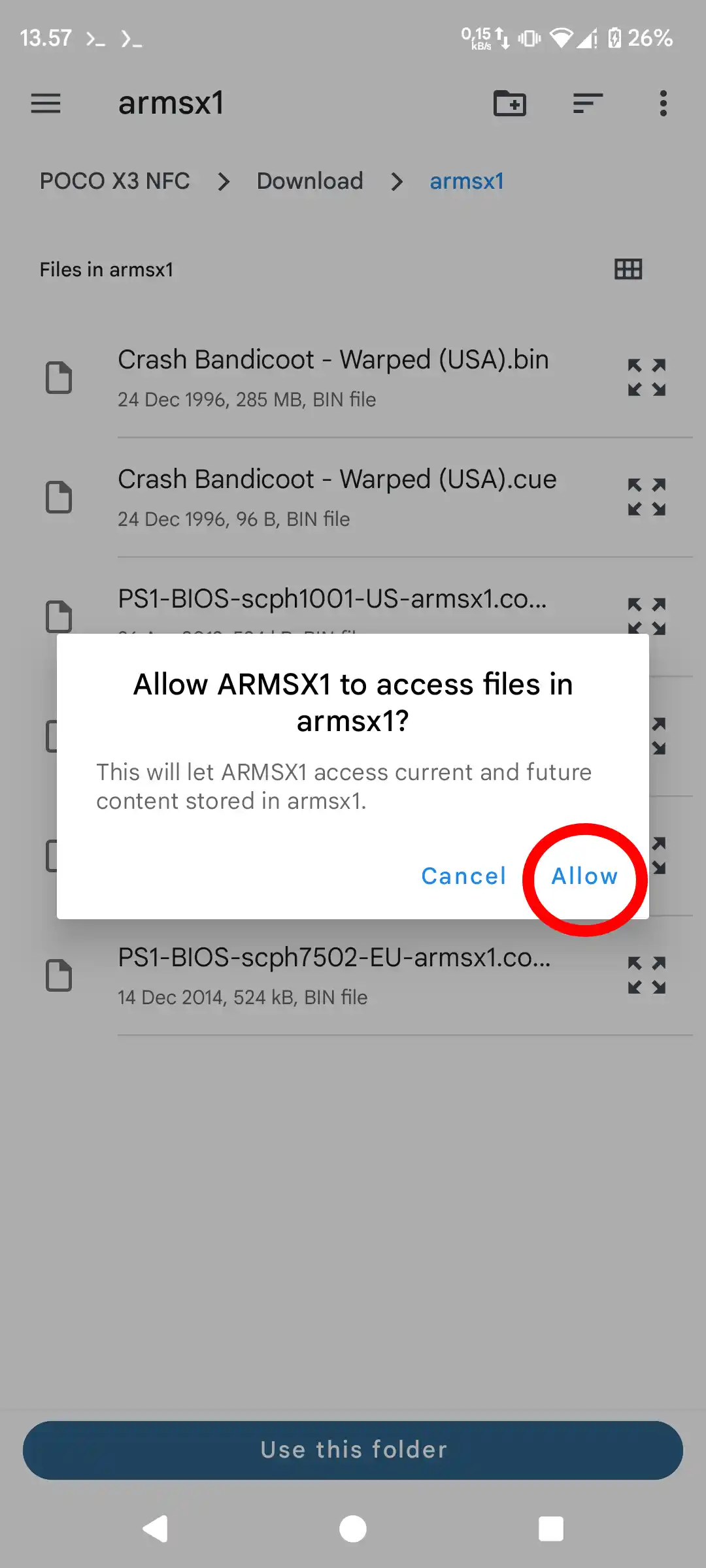
Tap Allow. 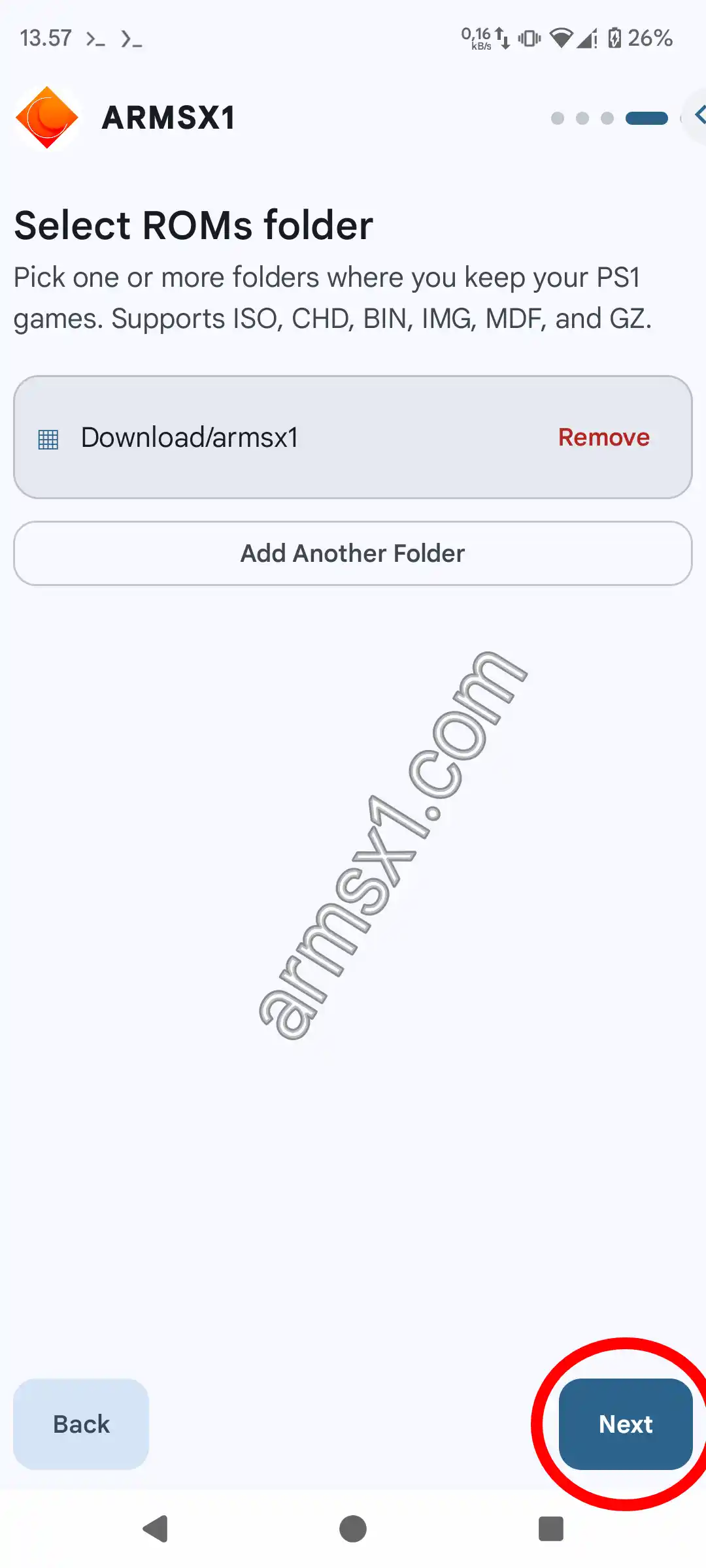
The game folder has been added to the list. Tap Next. -
Apply setup
The Apply & Finish screen summarizes your selections: the App Data Folder, the BIOS version under BIOS Location, and the number of folders under ROM Location. Tap Let's Go.
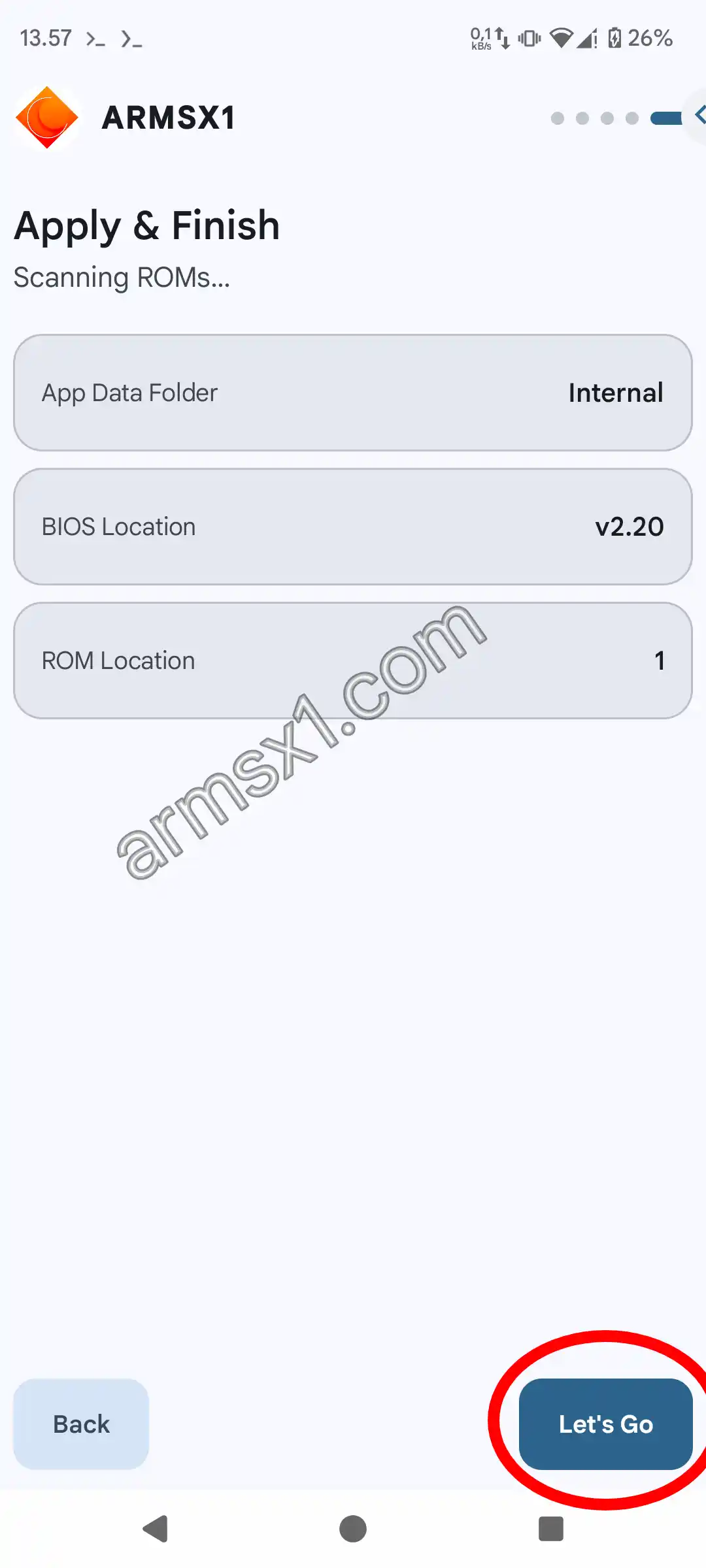
Review the summary, then tap Let's Go. -
Play the game
ARMSX1 scans your game folders, and any detected games will appear in your library, complete with their cover art. Tap on a cover to launch the game using your chosen BIOS.

The game appears in your library. Tap to play.
PS1 BIOS Features on ARMSX1
Here is what ARMSX1 does with your BIOS files—from scanning folders to selecting the appropriate BIOS for a specific game.
Detected from Its Content
ARMSX1 calculates the MD5 checksum of each 512 KB file and compares it against a list of BIOS files recognized by the application. The filename does not matter, so there is no need to rename your files to anything specific.
Region and Version Displayed
Each detected BIOS will be displayed with a region flag, the console model, and its version—for example, SCPH-5500 (v3.0 09-09-96 J).
Multiple BIOS at Once
All BIOS files in the folder you select will be added to the list. Choose one BIOS for the emulator to use; you can change the BIOS in the settings whenever you like. Use Import BIOS file… to add more BIOS files without changing the folder.
Select Primary BIOS
You can specify which BIOS to use first via the Preferred console model setting. If that BIOS is not detected, ARMSX1 will automatically use another available BIOS. Changes will take effect when the game is restarted.
Per Game Custom BIOS
A BIOS can be set for specific games only, while other games can continue to use the global BIOS.
OpenBIOS Detected
OpenBIOS is a community-developed, open-source alternative to a BIOS. ARMSX1 can detect it as a valid BIOS. Many games can run using this BIOS, though not all of them.